Your first image is free, no sign-up needed
ToonboothToonbooth

Your photo

For the best result
  • A clear, well-lit photo works best; the main subject should not be tiny or blurry
  • Portraits, pets, landscapes and buildings all work
  • JPG, PNG, WebP or HEIC, up to 10 MB

Output style

Colors

0/300

Image to Cartoon

Image to cartoon from a JPG, PNG, WebP or HEIC file: pick 2D, 3D, comic or ink plus a color mood. Your first cartoon is free, no sign-up.
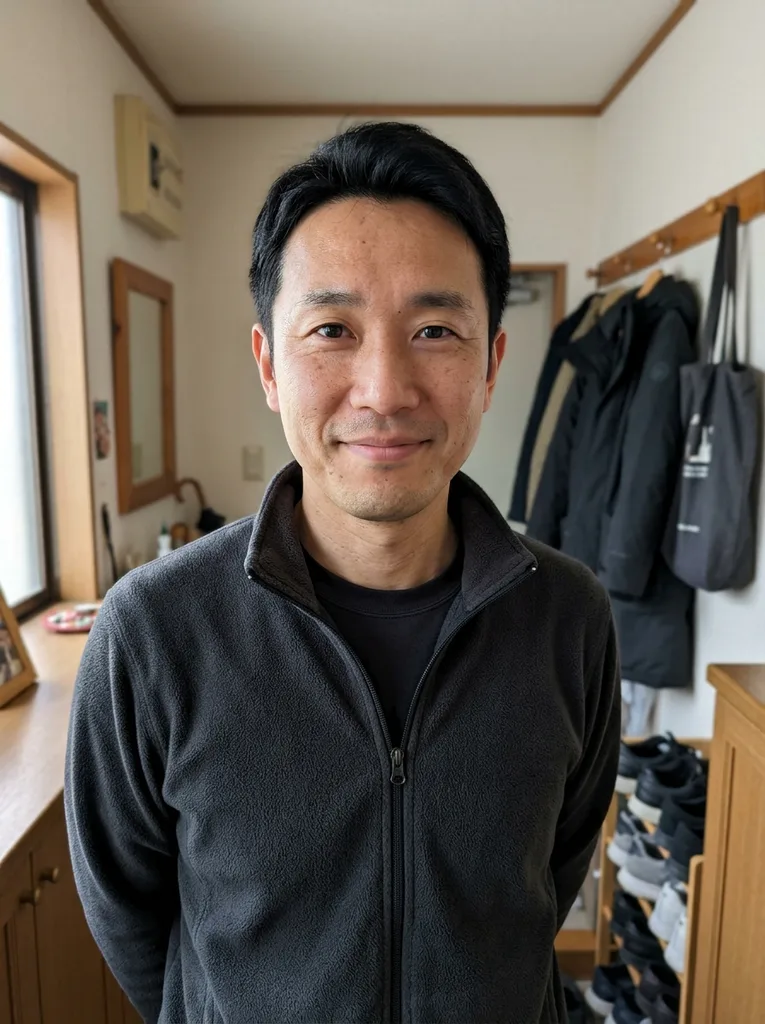
Original: Man in his early 40s: 2D Cartoon + VibrantBefore
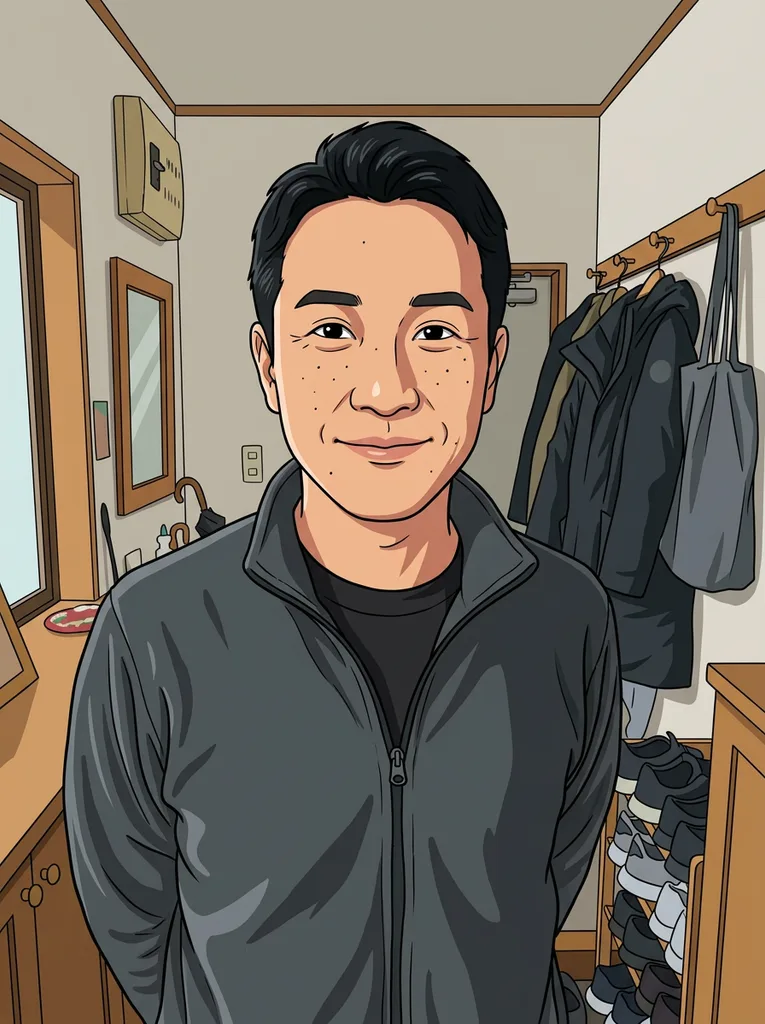
Image to Cartoon result: Man in his early 40s: 2D Cartoon + VibrantAfter

Example result. Upload your photo to make yours.

Examples

Original: Man in his early 40s: 2D Cartoon + VibrantBefore
Image to Cartoon result: Man in his early 40s: 2D Cartoon + VibrantAfter
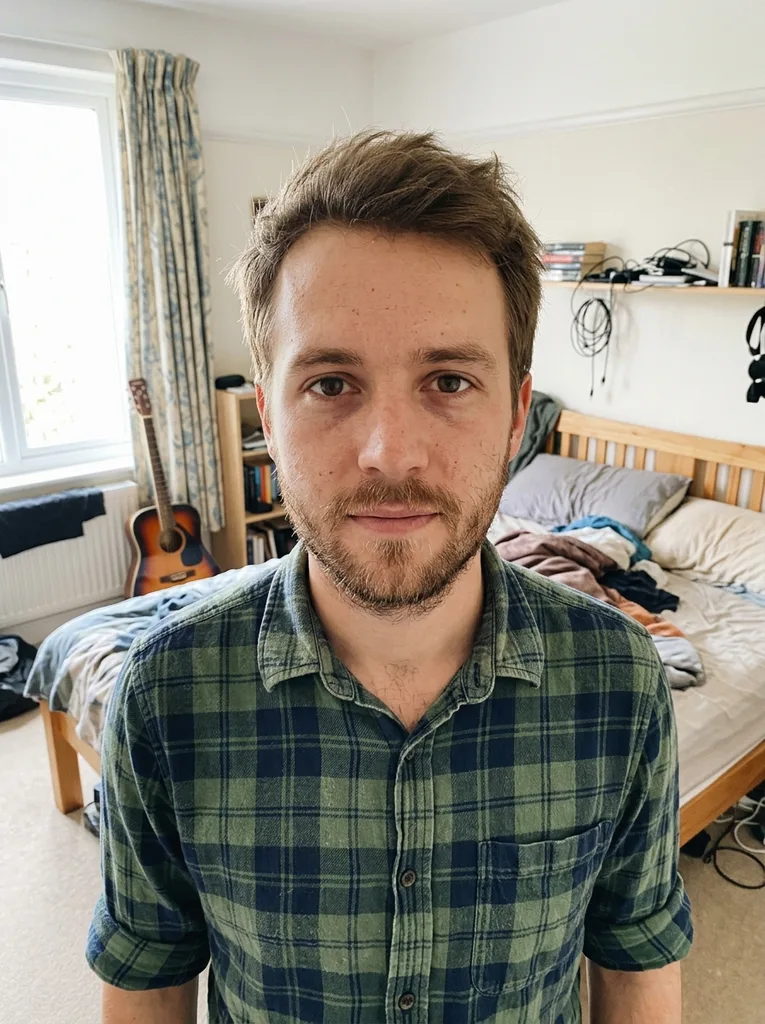
Original: Man in his late 20s: 3D Cartoon + VibrantBefore
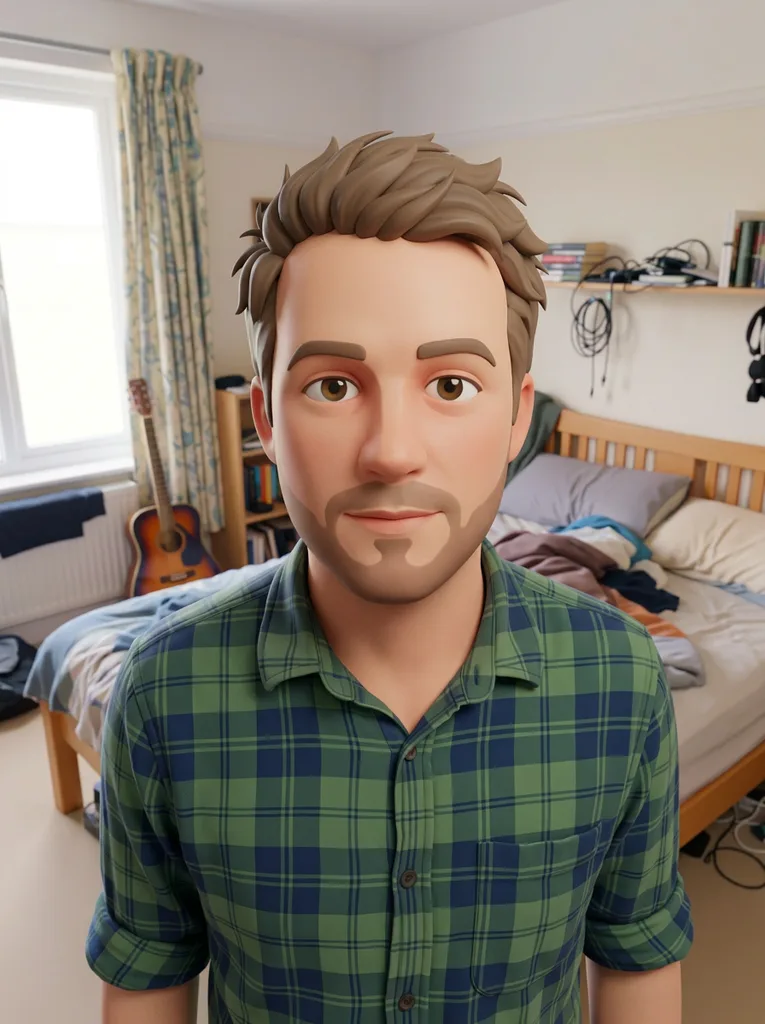
Image to Cartoon result: Man in his late 20s: 3D Cartoon + VibrantAfter

Four output styles for your image to cartoon conversion

Output style sets the drawing type. The Colors setting is a second, separate choice.

LookOutlines and shadingPick it when
2D CartoonFlat color fillsClean outlines, simple cel shadingYou want a clean, simple picture
3D CartoonRounded, render-like shapesSmooth materials, soft studio lightingYou want depth instead of flat color
ComicComic book page lookInk outlines, halftone shadingYou want a printed-comic feel on screen
Ink CartoonBlack and white line artConfident lines, crosshatch shadingYou want a drawing, not a color picture

How to convert an image to a cartoon

Three steps. Your photo stays in the left panel while the result appears next to it.

  1. 1

    Add one image file

    Click the upload box or drop a JPG, PNG, WebP or HEIC up to 10 MB. HEIC is converted in your browser, and large images are scaled down to 2048 px on the long side before upload.

  2. 2

    Choose output style and colors

    Pick one of the four styles, then one color setting. Vibrant is saturated, Pastel is soft with low contrast, and Muted Retro is a warm palette of five or six colors. The optional note box takes up to 300 characters.

  3. 3

    Convert and download

    Press Convert to Cartoon, then Download under the result. Changing a setting later means converting again. Check the cartoon against your original, since it is AI output.

Formats, limits and what happens to your file

The facts about files, privacy and cost, in one place.

  • Formats and limits

    For image to cartoon conversion, JPG, PNG, WebP and HEIC work, up to 10 MB, one image per run. RAW, TIFF and SVG files are not supported and show an error. The download is one image in the format the model returned, with no format or size picker and no transparent background.

  • What happens to your file

    Your photo is only used to create your cartoon and is never used to train AI models. Your photo is stored in our cloud storage so the AI model can read it, and the finished cartoon is only kept for a limited time. Download it before you leave the page, because refreshing clears it.

  • What is free

    Your first cartoon is free across the whole site, with no sign-up and no credit card. We add no watermark to the download. After that free image there is no way to pay on this site yet.

Frequently asked questions

JPG, PNG, WebP and HEIC, up to 10 MB each. You add one image at a time. RAW formats such as DNG, CR2, NEF and ARW, plus TIFF and SVG, are rejected with an error.

Yes. A HEIC photo is converted to a JPEG in your browser before it is uploaded, so you do not need to convert it yourself. You will see a short "Preparing photo" message while that happens.

A clear, well-lit picture where the main subject is not tiny or blurry. Pick the file at its original size, since the tool shrinks it to 2048 px anyway. The optional note box is the place for small requests like thicker outlines.

Your browser compresses the image first and reduces its long side to at most 2048 px. That is the size the tool works on, so a very large file is not rejected just for its pixel count.

You get one image, downloaded as the model returned it. There is no format or size picker, no transparent background and no watermark. The cartoon follows the shape of your original.

One image at 1K resolution per run. You cannot pick a resolution or upscale the result here.

Yes. Pets, scenery and buildings can be uploaded too, since the upload tips list them. The examples we ran were single portraits, so we only describe what we saw there. The model is told to keep your composition, so check that the cartoon still matches your original.

Upload one image, pick an output style and a color setting, and convert. Your first image is free across the whole site, so choose the combination you want most before you press the button.

This site is a separate tool, not ChatGPT. You upload a file, choose from four output styles and three color settings, and download the result. There is no chat and no typed prompt needed.

They change the color treatment of the cartoon. Vibrant asks for saturated colors, Pastel for soft colors with low contrast, and Muted Retro for a warm palette of five or six colors. They are instructions to the model, not guarantees.

It can happen. Our own 2D Cartoon with Vibrant example came out with a fairly dark overall tone. The color setting and the note box are the two controls that shape the tones, so set them before you generate.

No. It is a web page, so there is nothing to install, and there is no API. Open the page, upload your file and download the result.