Your first image is free, no sign-up needed
ToonboothToonbooth

Your photo

For the best result
  • A clear, well-lit photo works best; the main subject should not be tiny or blurry
  • Portraits, pets, landscapes and buildings all work
  • JPG, PNG, WebP or HEIC, up to 10 MB

Cartoon look

Detail

0/300

Cartoonify

Cartoonify an image and get everything in it redrawn: people, pets, rooms and places. Your first cartoon is free, no sign-up.
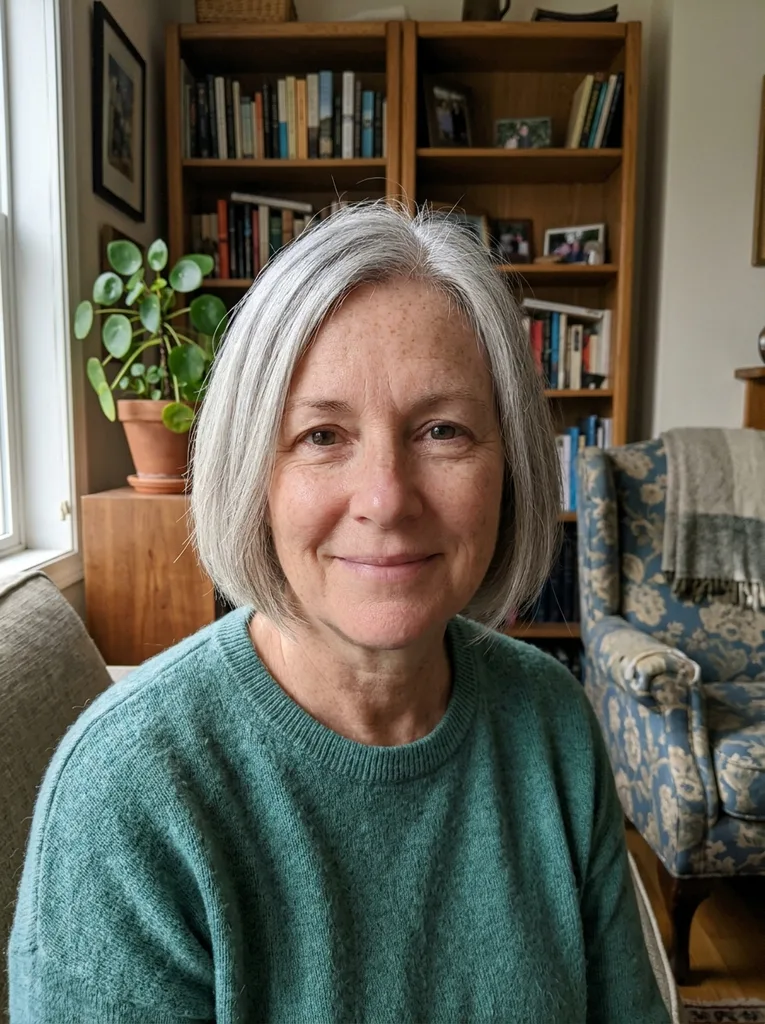
Original: Woman in her early 60s with grey hair: Standard Cartoon + BalancedBefore
Cartoonify result: Woman in her early 60s with grey hair: Standard Cartoon + BalancedAfter

Example result. Upload your photo to make yours.

Examples

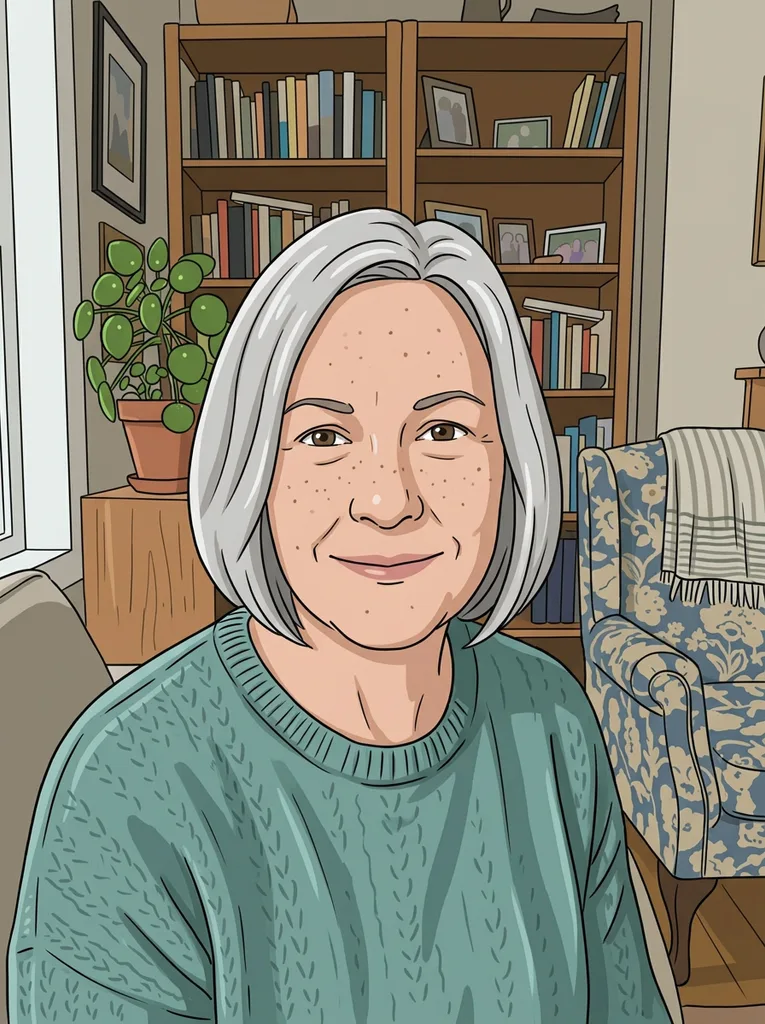
Original: Woman in her early 60s with grey hair: Standard Cartoon + BalancedBefore
Cartoonify result: Woman in her early 60s with grey hair: Standard Cartoon + BalancedAfter
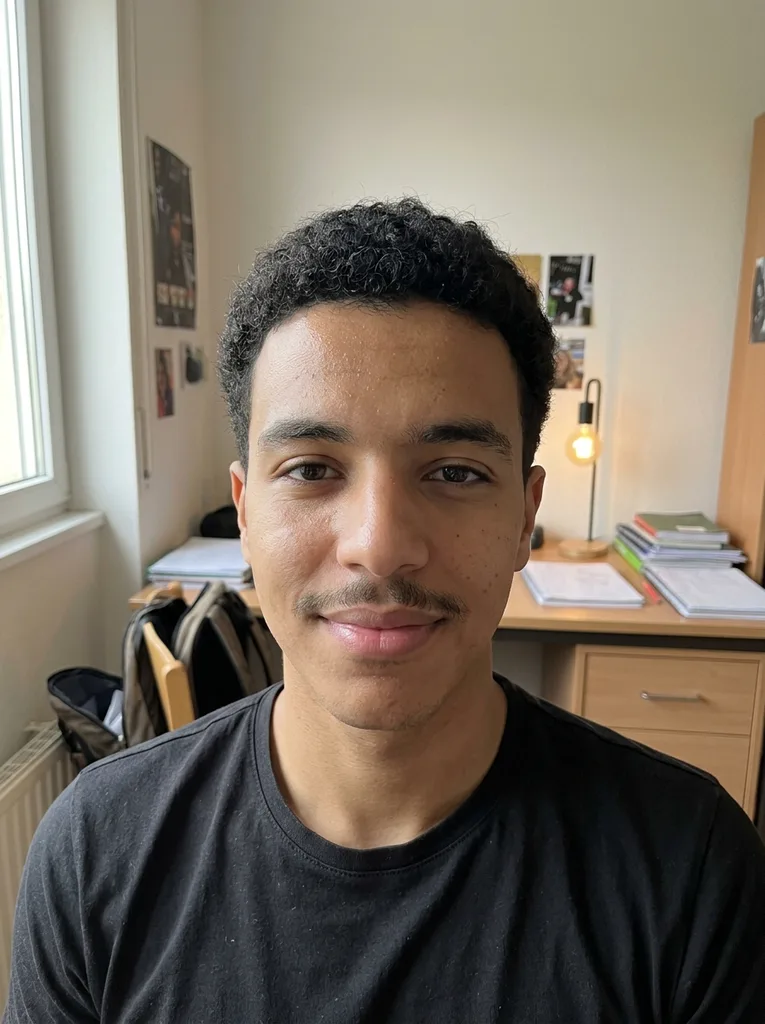
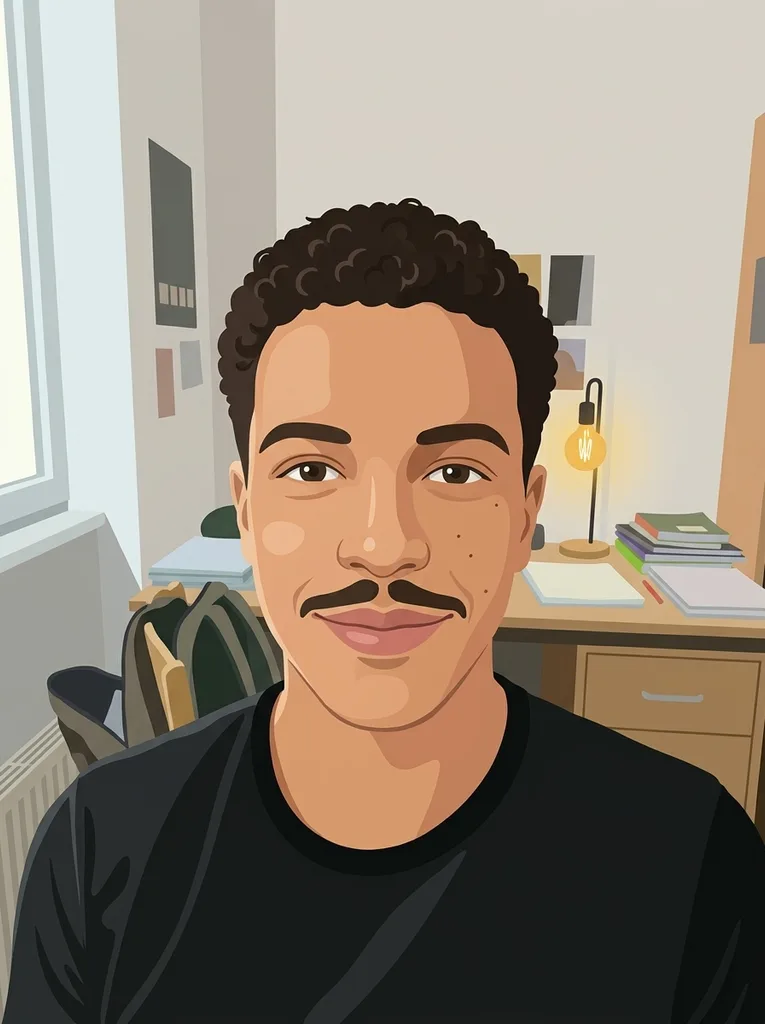
Original: Man in his early 20s: Flat Vector + BalancedBefore
Cartoonify result: Man in his early 20s: Flat Vector + BalancedAfter

Pick a photo to cartoonify

A few choices before you cartoonify make the redrawn picture cleaner.

  • Start with a clear, well-lit photo, because a blurry one gives the model little to redraw.
  • Keep the main subject large in the frame, not a small figure far away.
  • Look at the whole frame before you cartoonify it, since shelves, plants, furniture and sky are redrawn along with the person.
  • Crop out anything you don't want in the cartoon before you upload, because the model redraws what it sees and a cleaner frame gives a cleaner picture.
  • Portraits, pets, scenery and buildings can all be uploaded.
  • Use a JPG, PNG, WebP or HEIC file up to 10 MB. Your browser shrinks big photos and converts HEIC for you.
  • Upload one photo per try. Your first cartoon is free across the whole site, so choose the one you want most.

How to cartoonify an image in three steps

One photo in, one cartoon out, with two choices in between.

  1. 1

    Upload one photo

    Click the upload box or drop a photo into it. Your photo stays in the panel while the result appears in the result area.

  2. 2

    Choose a look and a detail level

    Pick one Cartoon look and one Detail setting. You can also add a short note, such as "make the sky pink", up to 300 characters. The note is added to your request and trimmed if it is longer.

  3. 3

    Generate and download

    Press the button, then use Download to save the image. It is AI output, so compare it with your photo. A new look or detail level needs a new generation.

Why cartoonify the whole picture

The prompts cartoonify the scene, not just a face.

  • Cartoonify the whole frame, not only a face

    The model is told to keep the composition and to redraw every person, pet and object in place. In our example, a living room came back with the shelves, plant, patterned armchair and picture frames drawn in.

  • Simple, Balanced or Detailed

    Simple turns the scene into big shapes and few colors. Balanced keeps moderate detail in faces, hair, clothes and background. Detailed keeps rich detail in hair, clothing, textures and background.

  • Four cartoon looks

    Standard Cartoon has clean dark outlines, flat colors and soft shading. Bold Outline uses very thick black lines like a sticker. Flat Vector has smooth shapes and no outlines. Soft Pastel has thin outlines and rounded shapes.

  • An illustration, not a filter

    When you cartoonify a photo here, the prompt asks for a clearly redrawn illustration rather than a photo with an effect on top. In that example, the hair color, freckles and sweater texture carried over.

  • Free to start, nothing added

    One cartoon is free, with no sign-up or credit card. The download is the image as the model returned it, with no watermark added by us.

Frequently asked questions

Yes. The photo is redrawn by an AI image model that follows a prompt built from the look and detail level you pick, plus your optional note. It is AI output, so compare it with your photo.

Your first cartoon is free, with no sign-up and no credit card, and you should only cartoonify photos you have the right to use. The free allowance is one image across the whole site, not one per page. After that you can't generate more.

To cartoonify yourself, upload a clear photo of yourself, choose a look and a detail level, and press the button. Add a note if you want one change. Only upload photos of people who are 18 or older.

You can upload them: portraits, pets, scenery and buildings are all listed in the upload tips. Our own examples are people in rooms, so we have no tested results to show for the others.

It sets how much of the scene survives, so it matters most when you cartoonify a busy room or street. Simple reduces everything to big shapes and few colors. Balanced keeps moderate detail. Detailed keeps rich detail in hair, clothes, textures and background.

Not on the existing image. Changing the look, the detail level or the note means generating again, which uses another try. Choose the combination you want most before you press the button, and use the optional note for one specific change.

Upload a photo of the room or place and pick a look, then check that the furniture and background came out where you expect. The prompt tells the model to keep every object where it is and to keep the background layout. Detailed keeps the most texture in the background, and Simple keeps the least.

No. The prompt keeps the same composition, pose and features instead of exaggerating them. For big heads and stretched features, use a caricature maker.

JPG, PNG, WebP or HEIC, up to 10 MB. HEIC is converted and large photos are scaled down in your browser before upload. RAW, TIFF and SVG files are not supported.

Your photo is only used to create your cartoon and is never used to train AI models. The uploaded photo is stored only to run the service, and you can email us to ask for it to be deleted. The result is kept by the AI provider for a limited time, so download it right away.